- Strategic Advanced Recovery - FixData
- Posts
- Did you know? Ten seconds is the difference to lose your information
Did you know? Ten seconds is the difference to lose your information
Edition #16 by FixData

Alberto Navarro
February 14, 2024

Thank you for being part of the FixData community! Did you know? It only takes ten seconds to lose your data. In this edition, we will address the topic of data loss on external hard drives. In our premium version, we will analyze the flow of the hard drive data recovery process.
Trivia
How should a data backup be performed?
(answer at the end of the newsletter)
Ten seconds is the difference.
After the pandemic, working from home has become a popular work style for many companies. Whether you choose to work from home or from some other place that is convenient to perform your activities.
We can use different tools and devices to safeguard all our digital lives, and it is natural that our work brings us up and down, either from our office or from an external area, making external storage devices our best allies when it comes to saving information.

Thanks to these devices, it is no longer necessary to carry the pile of papers or documents you used to carry. Everyday life is lighter; it boils down to carrying your laptop and an external hard drive to store or back up your information. You simply arrive at your favorite place, settle in, carry out your activities, and when you finish your work, it's time to leave. You disconnect everything, put your equipment away, and leave, turning this process into your daily routine since there is always more to do.
A new day arrives, and it's time to get back to work, but surprise! Your computer is not able to read your storage device anywhere, and you just don't understand what happened.
Did you know that external HDDs require time to assimilate and that they are stopping working? It sounds a bit extraordinary, but believe it or not, even if the file transfer is finished and your disk is no longer in "use," it is quite possible that processes are running in the background. Disconnecting a hard disk without first ejecting it can cause damage to some of your files, the file system in general, or some of the write areas, which would result in logical damage and loss of your data.
The recommended thing to do in this case would be to: exit all folders in use; make sure you are completely out of the drive; eject it safely; and wait at least ten seconds to disconnect your external hard drive. This way, you will be able to completely change your history, take care of your files, and save all your work just by waiting 10 more seconds.
But don't worry; in case you miss it and one of your storage devices fails, FixData is on hand to check your drive.
What is an external hard drive?
It is a storage device composed of an HDD, which can be 2.5 inches or 3.5 inches thick. They are designed to be portable and have a USB input that can be connected to the computer.

Why use them?
This type of drive is portable, which allows it to be taken anywhere. They are ideal for moving information and storing it in one place as backup copies, among other uses.
What devices can it be used on?
With a USB port, this device is compatible with a wide variety of equipment, including laptops, desktop computers, and video game consoles, among others.
Recommendations for use:
It is advisable to use the device to store information, such as backups or information in general, due to the fact that hard disks tend to have greater durability than solid-state drives, thus offering greater reliability.
What connector do they use?
These drives have a SATA to USB micro-B adapter, which can be connected to the computer via a USB micro-B to USB cable.

Dimensions:
They are 2.5 inches high by 3 inches wide, although the size may vary depending on whether they have a plastic cover. Some may even have 3.5-inch disks with a power connector.

Speed compared to a traditional hard drive:
External hard drives are typically slower than internal drives due to the fact that they use a USB port for data transfer. Generally, external hard drives can reach maximum speeds of 128 MB/s, while 2.5-inch internal drives can reach speeds of up to 180 MB/s at most. Internal 3.5-inch hard disks, on the other hand, can offer even higher speeds, reaching up to 200 MB/s under optimal conditions.
Consumption:
2.5-inch external hard drives, compared to internal hard drives, consume the same amount of power as 3.5-inch hard drives, whether external or internal.
Therefore:
2.5-inch disks consume 5 V or 5 W.
3.5-inch disks consume 12 V or more than 7 W.
Price:
External hard drives can be found on the market for an average of $60 for 1 TB. The cost of the drive may vary depending on the vendor and storage capacity.
Disadvantages:
They are more prone to drops and bumps.
They are slower when using a USB port instead of a direct connection to a SATA port.
They are more exposed to vibration, which can misalign the read head of the platters and damage them, rendering the drive unusable.
Advantages:
They are portable.
If you use a 2.5-inch HDD, they are more compact.
You can use adapters to use your internal hard drives externally.
What should I do if I drop my external hard drive?


How do I take care of an external HDD?
To take care of an external HDD, it is essential to follow certain recommendations that can help prolong its lifespan. External hard drives, although convenient and portable storage devices, are equipped with mechanical parts that make them susceptible to damage if not handled properly.

To give an example, simply shaking them too much can significantly shorten their useful life, even without the user being immediately aware of it. Therefore, it is essential to keep certain practices in mind to ensure the proper functioning and durability of these storage devices. Below are some suggestions for proper use of the external hard disk drive (HDD).
Eject safely.

It is important to disconnect the external drive properly. To do so, it is recommended to eject the drive from the operating system before physically disconnecting it.
Avoid the use of magnets.

It is crucial to keep magnets away from the hard disk, as they can cause irreparable loss of data. Since the hard disk contains magnetic components, such as the disk platters where information is stored, the proximity of magnets can be harmful.
Use a regulator.

It is advisable to use a regulator in the computer equipment to avoid current fluctuations. These fluctuations can damage the hard disk, as the read and write heads may not park properly during a power dip, which may cause scratches on the platters.
Avoid bumps and falls.
Shocks and drops can cause significant damage to the hard drive, even resulting in the loss of data. It is important to handle the drive with care and avoid situations that may cause a physical impact.

Control the temperature:

High temperatures can adversely affect the hard drive, shortening its life span. It is recommended to avoid exposing the drive to extreme temperature conditions and, if possible, use an external fan to keep it cool.
Monitor the status of the hard drive:
It is wise to periodically check the status of the external drive. Specialized software can help diagnose possible problems.


Use the appropriate connectors:

It is preferable to use the cables supplied with the unit, although alternative cables can also be used as long as they provide adequate current and are not excessively long, which could cause slowdowns in the operation of the unit.
Types of interfaces on an external HDD
External hard drives feature a variety of interfaces and adapters to meet different connectivity needs. Over time, different technologies have emerged for these devices.

Older Interfaces: IDE and PATA
IDE (Integrated Drive Electronics):
This technology, dating back more than 30 years, was one of the first to be used in external hard drives. Later, the PATA interface was developed as an improvement of the IDE.
Transfer speeds in IDE interfaces:
IDE/ATA-1: 3.3-8.3MB/s
IDE/ATA-2: 11.1-16.7 MB/s
IDE/ATA-3: 11.1–16.7 MB/s
PATA (Parallel ATA):
Used to connect hard and optical drives to the motherboard, the PATA interface offers 40- to 80-pin versions and allows the connection of up to two devices on the same bus.
Generations of PATA or ATA:
ATA-1: Introduced power supply to drives without a power connector, facilitating CPU and data input/output processes.
ATA-2: increased transfer speed and added support for removable devices.
ATAPI-4, ATAPI-5, ATAPI-6, and ATAPI-7: These generations improved the speed and functionality of the PATA interface.

SATA (Serial ATA) interface:
The SATA, or Serial ATA, interface has revolutionized external hard drive connectivity by offering a more efficient and advanced solution compared to previous interfaces such as IDE and PATA. This technology was introduced in the early 2000s and has since become the dominant standard for connecting storage devices to external hard drives and other storage devices.
One of the main advantages of SATA is its serial design, which uses a single cable for data transmission, in contrast to parallel interfaces such as IDE and PATA. This allows for faster and more efficient communication between the external hard drive and the host system.
Maximum SATA speeds:
SATA 1.0: 1.5 Gbps (150 MB/s)
SATA 2.0: 3.0 Gbps (300 MB/s)
SATA 3.0: 6.0 Gbps (600 MB/s)

Native USB Interface and Adapters:
The USB micro-B superspeed USB interface represents a significant evolution in external storage device connectivity, offering faster transfer speeds and greater efficiency compared to previous versions of USB.
The USB micro B superspeed connector is a variant of the USB micro B standard, but with enhanced capabilities to support higher data transfer speeds. This interface is commonly used in modern external hard drives and other high-speed storage devices.
Features:
Some external hard drives come with a superspeed USB micro-B interface soldered directly onto the logic board, which improves connection and speed.
Common adapters for external hard drives are SATA to USB micro B superspeed, while for 3.5-inch drives, the USB B superspeed format is used.
The transfer speed can be affected by the version of the USB port to which it is connected, either USB 2.0 or USB 3.0.
Become part of the community; join our WhatsApp group!
Trivia
How should a data backup be performed?

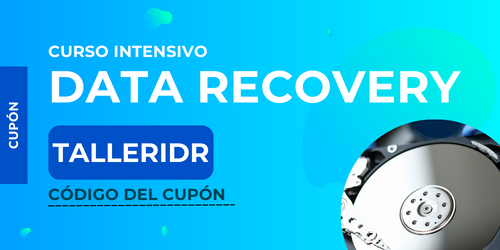
Online Workshop: Data Recovery Intensive
Register for our intensive online data recovery workshop!
As part of this community, we offer you the following coupon. Simply access the link below and enjoy the content we have prepared for you:
Information retrieval is a specialized process consisting of several phases, which are mentioned below:
Diagnosis
Retrieval
image
File Restoration
In the following video, our specialist in the field will explain in more detail what this process consists of and each of its phases.
Subscribe to Premium to read the rest.
Become a paying subscriber of Premium to get access to this post and other subscriber-only content.
Already a paying subscriber? Sign In.
A subscription gets you:
- • Access to advanced exclusive content
- • Exclusive deals for data recovery services
- • Discount cupon for our data recovery course
- • Special thanks mention every month